Help
Getting started, answers, and a way to reach us.
Getting started with your Bridge
What it is
The ParaBaro Bridge is a small unit with no screen. With its four wing modules it records the pressure inside your wing at two points, one on each side, together with your GPS track and motion data. You read each flight back on your pilot dashboard after you land.
What is in the kit
- The ParaBaro Bridge
- Four wing modules, used as two pairs: at each measurement point, one module goes inside the cell and one sits on the outside directly opposite.
When you are accepted into the beta we send a setup guide for your Bridge and go through it with you on a short call before your first flight. It covers the button and light signals and how to transfer flights for the firmware your Bridge ships with.
Add the Bridge to your account
Sign in at aviometrics.com and open Add your ParaBaro. Enter the serial number from the label on your Bridge; it looks like PB2-000123. From then on, every flight you send is filed under your name.
Charge it
Charge the Bridge and all four modules fully before your first flight. We have not published a battery figure yet; until we do, charge them before each flying day.
Fit the modules to your wing
With the wing laid out on the ground:
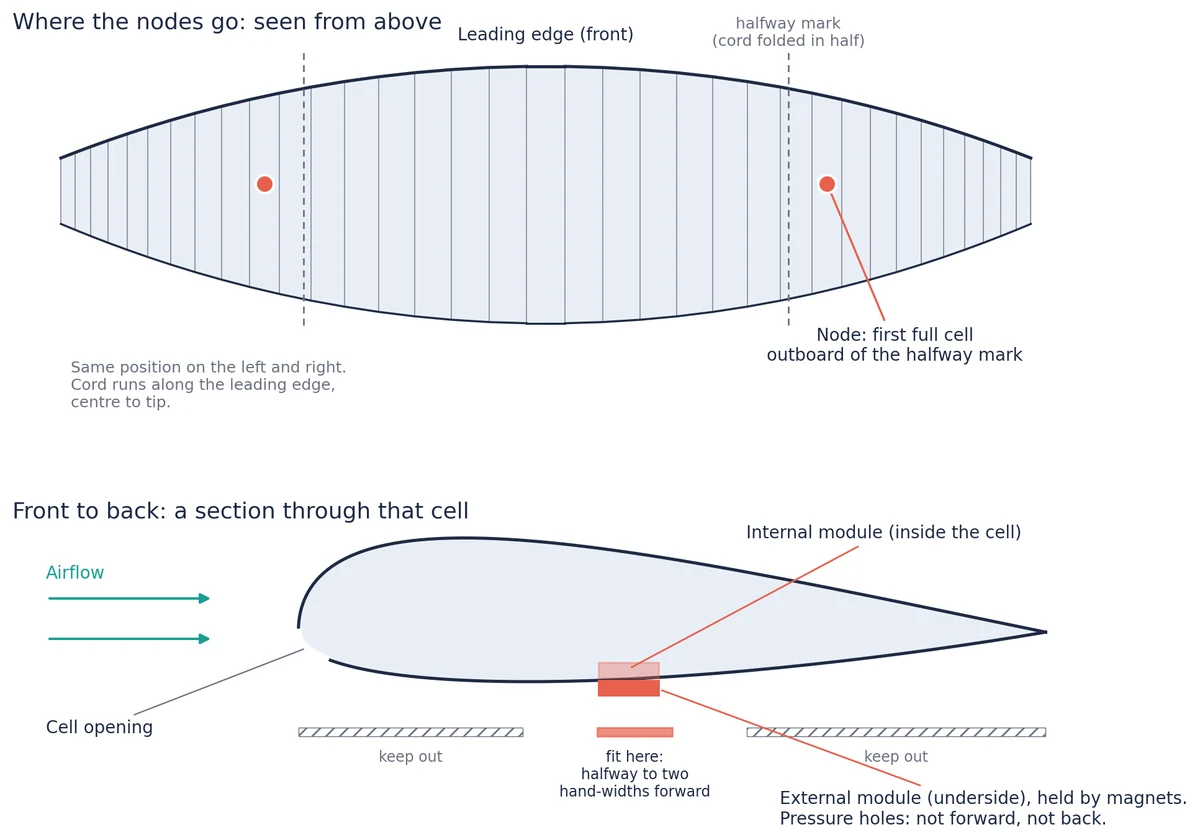
- Find the cell. Run a cord along the leading edge from the centre of the wing to the tip, pinch it at the tip and fold the pinch back to the centre: the fold marks halfway. Use the first full cell outboard of that mark, the same cell on both sides, at least one cell inboard of the cells that fold under when you pull big ears. Do not mark the sail.
- Find the spot in that cell. On the bottom surface, measure from the rear edge of the cell opening to the trailing edge, fold the cord in half, then move one hand-width (flat hand, thumb alongside the fingers) forward. Anywhere from halfway to two hand-widths forward is fine. Centre it between the cell's side seams and keep at least 3 cm clear of seams, tabs and tapes.
- Slide the inside module in through the cell opening. You cannot reach the spot by hand: put the outside module on the bottom surface against it and draw it back through the fabric to the spot.
- Settle the outside module on the spot, directly opposite the inside one. Its pressure holes must not face forward into the airflow or backwards, and the inside module's holes must not face the cell opening. Fit the two sides as mirror images.
- Check that each pair holds firmly. Then note the cell number counted from the centre and your two measurements in cm; a photo with the tape in view helps.
Nothing is cut, sewn or glued, and nothing clips to the risers. The modules can stay fitted between flights; take them out for long-term storage.
Fly
Switch the Bridge on before you launch. It records each flight on its own. Fly exactly as you normally do.
Before each flight, lift the leading edge at both sensor cells and check that both modules are in place and their holes are clear. The Bridge cannot tell you if a module has come off.
After you land
Send your flights to your pilot dashboard as shown in your setup guide. There you see your track and the pressure on each side of your wing through the whole flight. Sending flights is your choice.
Care
- The Bridge and modules have no water-resistance rating. Keep them dry and never submerge them.
- Clean them with a soft, dry cloth.
- Take the modules out of the wing for long-term storage.
Something not working?
If something does not work, or something in your data looks wrong, tell us. You reach the team directly: contact us.
Questions
About ParaBaro
ParaBaro records what your wing is doing. The kit is the ParaBaro Bridge, a small unit with no screen, and four wing modules that measure the pressure inside your wing at two points, one on each side. Every flight is recorded with your GPS track and motion data, and you read it back after you land.
It is a recorder, not an instrument. It gives no warnings in flight. Fly your normal instruments and your normal judgement.
No. Keep flying with everything you use today. ParaBaro adds a record of the pressure inside your wing; it does not take over any job your vario or flight app does.
The only flight app we have tested it with is XCTrack. With any other app or device: not tested yet.
No. ParaBaro is not a certified flight instrument and not an IGC-approved flight recorder, so its tracks are not valid for FAI badges or records. It does not replace any safety equipment.
The kit and your wing
The ParaBaro Bridge and four wing modules. The modules work in pairs: at each of the two measurement points, one module sits inside the cell and one sits on the outside directly opposite.
Each pair sits in the same place on both sides. Run a cord along the leading edge from the centre of the wing to the tip and fold it in half; the pair goes in the first full cell outboard of that halfway mark, a little ahead of the middle of the chord, on the bottom surface. The inside module slides in through the cell opening and is drawn back into place with the outside module; magnets hold the two together through the fabric. Nothing clips to the risers. The first fit takes longer because you measure the spot; after that the modules can stay in place between flights.
When you are accepted we send a setup guide and go through it with you on a call before your first flight.
No modification is made: no cutting, sewing, glue or tools. Each module weighs about 20 g, about 80 g for all four. Take them out and the wing is exactly as it was.
Yes, they can stay fitted between flights. Take them out for long-term storage.
We have not published a battery figure yet. We will once it is measured on real flights. Until then, charge the Bridge and the modules before you go flying.
Your data
For each flight: the pressure inside your wing at both measurement points, your GPS track and motion data. Sending a flight to your pilot dashboard on aviometrics.com is your choice.
No. Aviometrics does not sell or share your personal data. Anonymised, aggregated flight data may be used internally to improve our analysis. Your name, locations and personal flight records are never shared. See the privacy policy.
Price and the beta
Beta testers pay £199 including VAT (£165.83 plus VAT), once. The regular price of the same unit is £395 including VAT (£329.17 plus VAT). It is yours on delivery: no subscription, no hours to fly off, nothing owed afterwards.
Apply on the beta page. We read every application ourselves and reply within 7 days.
An optional programme for pilots who want to send us their flights and tell us what happened on them. It awards points. Points are not money: they have no cash value and cannot be transferred or sold. They redeem only against our own analysis of your flying. Not taking part changes nothing about the unit you own.
Contact us
Write to us and a person on the team will reply. Response Time: Within 24 hours.
Beta pilot with a problem on your kit? Open a support ticket: you can attach files and follow the reply.